
Quotes from a single sentence: EstiWise now works inside Claude and ChatGPT

More and more people use an AI assistant for everyday work: drafting emails, summarising meetings, collecting ideas. But when it came to a quote, you still had to switch to another program.
Not any more. EstiWise now connects directly to Claude, ChatGPT and other AI assistants. Once connected, you just say what you want and the AI does it in EstiWise: it builds an estimate from a description or a floor plan, puts together the quote, emails it to your client and helps you keep track of your inquiries. There’s no new interface to learn.
What does this mean in practice?
EstiWise works where you do: in your favourite AI assistant. You sign in with your own account, and the AI manages your services, internal estimates, quotes and inquiries on your behalf. Behind the scenes it uses MCP, an open standard that lets AI assistants use external programs.
Fewer clicks, more quotes: one description or uploaded floor plan becomes an internal estimate, the estimate becomes a quote, and sending it takes a single request.
A quote from the job site, by phone: an example
Picture a window and door contractor who sends a quote straight from the job site, by phone, without opening the admin interface.
- A photo and one sentence. After the site survey, they photograph the floor plan and write in the Claude mobile app: “Kovács Péter, replace 6 windows, about 21 m², make an estimate.”
- Follow-up questions. Claude uploads the image, starts the internal estimate and asks about anything missing, such as the window material.
- An estimate from their own price list. Once they answer, the estimate is built from the contractor’s own price list, with Kovács Péter set as the client.
- The quote. “Turn it into a quote and take out the demolition.” Claude creates the quote and edits the line items.
- Sending, with confirmation. “Send it.” Claude shows the amount and the recipient, asks for confirmation, and only then emails the quote.
- An evening overview. In the evening, one question gives them an overview of their inquiries, and another moves them to the next status.
What can you ask your AI assistant to do?
You get the same tools that power the EstiWise admin chat, in four areas.
Service catalog
Search your services, create a new service from a description, edit questions, variables and formulas, and publish. For example: “Create a new service for window and door installation, priced per square metre.”
Internal estimates
Start a new estimate from a text description and up to 5 attached files (PDF, image, Word, text), answer follow-up questions, set the client and list your estimates. For example: “Here’s the floor plan, about 21 m² of window replacement for Kovács Péter. Make an estimate from it.”
Quotes
Create a quote from an estimate, edit line items, list your quotes and email them to the client. For example: “Take 10% off item 2 and send the quote.”
Inquiries
Query your sales pipeline and inquiries, and move them to another status. For example: “Which inquiries have been sitting in Quote sent for a week?”
The AI answers in plain language: you see names, dates and amounts, not technical IDs. And it all runs on your own prices. The AI doesn’t guess; it calculates from your services, prices and formulas, exactly the way EstiWise does.
Which AI tools does it work with?
- Claude (web, desktop and mobile)
- ChatGPT
- Cursor and VS Code
- any other client that supports the open MCP standard
Secure, because it runs through your own account
The connection is built on the open OAuth 2.1 standard and works the same way as “Sign in with Google” buttons.
- No passwords or keys to hand over. You sign in on EstiWise’s own page, and the AI tool only gets a short-lived access token, valid for 1 hour.
- The same permissions as the web interface. The AI works with your role and your company’s subscription. Whatever you can’t see or do in EstiWise, the AI can’t either.
- You always approve. On first connection, an approval page shows which app is requesting access and to which company.
- Revocable at any time. One click on the Connected apps page ends the connection, and it stops within 5 minutes.
- It expires on its own. After 30 days of inactivity, or 90 days after approval, you sign in again.
- Confirmation before irreversible steps. Before a quote is sent, the AI shows the recipient and the amount and asks you to confirm.
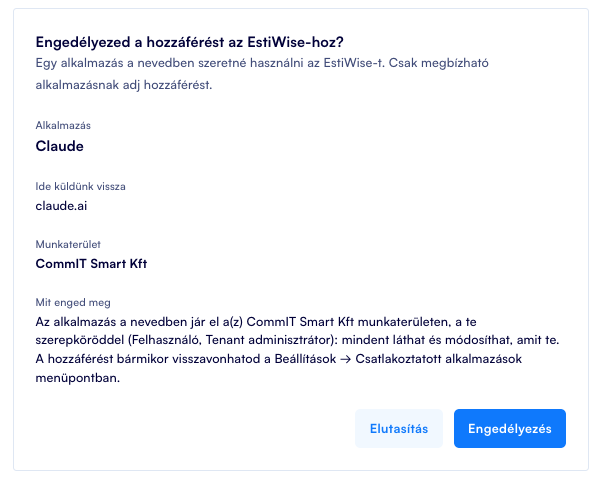
How to connect
Every client uses the same address: https://mcp.estiwise.ai/mcp. On first use a browser window opens, you sign in to your EstiWise account, check the company and approve the connection. The connection is available on every plan.
- Claude (web, desktop, mobile): Settings → Connectors → Add custom connector, enter the address, click Connect and sign in. Set it up on the web and it appears in the desktop and mobile apps too.
- ChatGPT: Settings → Apps & Connectors → Advanced settings, turn on Developer mode, then add a new connector with the address and OAuth authentication.
- Claude Code:
claude mcp add --transport http estiwise https://mcp.estiwise.ai/mcp, then choose Authenticate in the/mcpmenu. - Cursor: add the address to
mcp.json, then click Connect in Cursor’s MCP settings. - VS Code (Copilot): add the address to
.vscode/mcp.json, then click Start and sign in.
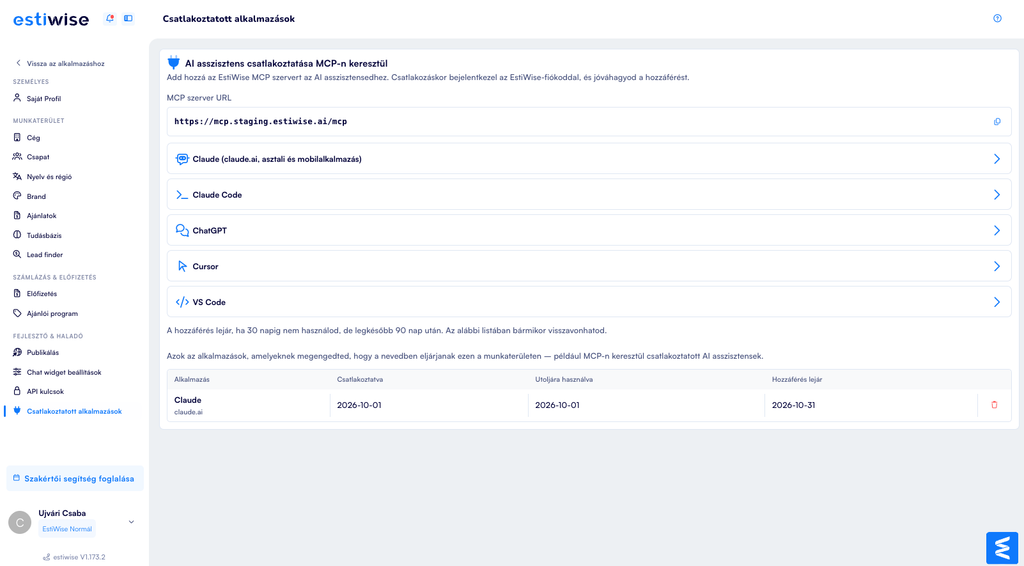
In EstiWise admin, the Settings → Developer & advanced → Connected apps page has step-by-step instructions and lists your active connections.
Try it today
Connect EstiWise to Claude or ChatGPT, type “Show me my latest quotes”, and see how EstiWise works alongside you.
No EstiWise account yet? Start the 7-day free trial, no credit card needed, or book a free demo and we’ll show you live.